Sony A7S III Menu Guide and Manual
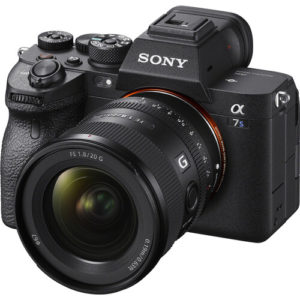
This guide outlines the optimal menu settings to configure the Sony A7S III for professional motion picture production. Utilizing these settings ensures maximum dynamic range, efficient post-production workflows, and reliable autofocus.
1. Camera Initialization and Base Exposure
Before modifying internal software parameters, turn the physical Mode Dial on top of the camera body to the Movie Icon (Film Strip). This isolates your video configurations from photo settings.
File Format and Codec Selection
Navigate to: Menu → Shooting → Image Quality → File Format
- Selection:
XAVC S-I 4K(All-Intra) - Accessibility Note: All-Intra compresses each frame individually at roughly 240Mbps (at 24p). While it creates larger file sizes, it requires significantly less computer processing power to decode during editing than Long GOP variations.
Movie Record Settings
Navigate to: Menu → Shooting → Image Quality → Movie Settings
- Rec Frame Rate:
24p(for standard cinematic cadence) or60p / 120p(for designated slow-motion acquisition). - Record Setting:
4:2:2 10-bit(Crucial for retaining color depth; do not use 8-bit profiles if you intend to color grade).
2. Color Science and Picture Profiles
Navigate to: Menu → Shooting → Image Quality → Picture Profile
Choose one of the two industry-standard profiles depending on your post-production timeline:
Option A: S-Cinetone (Profile PP11)
- Best For: Fast turnarounds, direct-to-delivery projects, or live environments.
- Characteristics: Matches Sony’s cinema line color science, offering natural skin tones and a soft highlight roll-off straight out of the camera without mandatory color grading.
Option B: S-Log3 (Profile PP8 or PP9)
- Best For: Maximizing the camera’s full 15+ stops of dynamic range and high-end color grading suites.
- Required Adjustments:
- Gamma:
S-Log3 - Color Mode:
S-Gamut3.Cine(Note: Avoid standard S-Gamut3 as it is harder to accurately balance).
- Gamma:
3. Video Autofocus Parameters
Taming the camera’s autofocus ensures focus transitions look intentional and organic rather than robotic.
Navigate to: Menu → Focus → AF/MF → AF Transition Speed
- AF Transition Speed: Set to
4or5. This slows down the rack-focus speed to mimic a manual human focus puller. - AF Subj. Shift Sensitivity: Set to
2or3(Locked On). This prevents the camera from instantly snapping to a secondary object or person if they temporarily cross the frame in front of your primary subject.
Subject Detection
Navigate to: Menu → Focus → Face/Eye AF → Face/Eye Priority in AF
- Setting:
On - Subject Detection:
Human
4. On-Screen Exposure and Monitoring Tools
Assistive overlays ensure you hit accurate exposure indexes and focus points without relying solely on the compressed LCD screen.
Zebra Stripes (Exposure Verification)
Navigate to: Menu → Exposure/Color → Zebra Display
- Zebra Display:
On - Zebra Level Settings:
- If shooting S-Log3: Set a custom menu limit to
94%to visually track when highlights are clipping, or41% to 45%to calculate middle-gray values on human skin. - If shooting S-Cinetone: Set to
70%for standard highlight control on skin tones.
- If shooting S-Log3: Set a custom menu limit to
Focus Peaking (Manual Focus Assist)
Navigate to: Menu → Focus → Focus Assistant → Peaking Display
- Peaking Display:
On - Peaking Level:
LoworMid(High levels can introduce false readings in high-contrast textures). - Peaking Color:
RedorYellow(Choose a color that strongly contrasts with your physical environment).
Gamma Display Assist (Viewing LUT)
Navigate to: Menu → Setup → Display Option → Gamma Disp. Assist
- Setting:
On - Type:
AutoorS-Log3 → 709 - Accessibility Note: This applies a temporary Rec.709 conversion color profile purely to your viewscreen. It allows the operator to monitor proper lighting, contrast, and focus depth without looking at a flat, low-contrast log image.
5. Audio Configuration
Navigate to: Menu → Sound Recording → Audio Rec Level
- Audio Rec Level: Switch from Auto to
Manual. - Calibration: Adjust your pre-amp gain levels so that consistent environment audio dialogue peaks safely around -12dB.
- Wind Noise Reduction:
Off. Internal software algorithms introduce phase issues into human vocal ranges. Utilize physical wind protection (such as a deadcat windjammer) on the external microphone instead. - Audio Out Timing: Set to
Liveto sync headphone monitoring perfectly with real-world acoustics, eliminating latent processing delays.